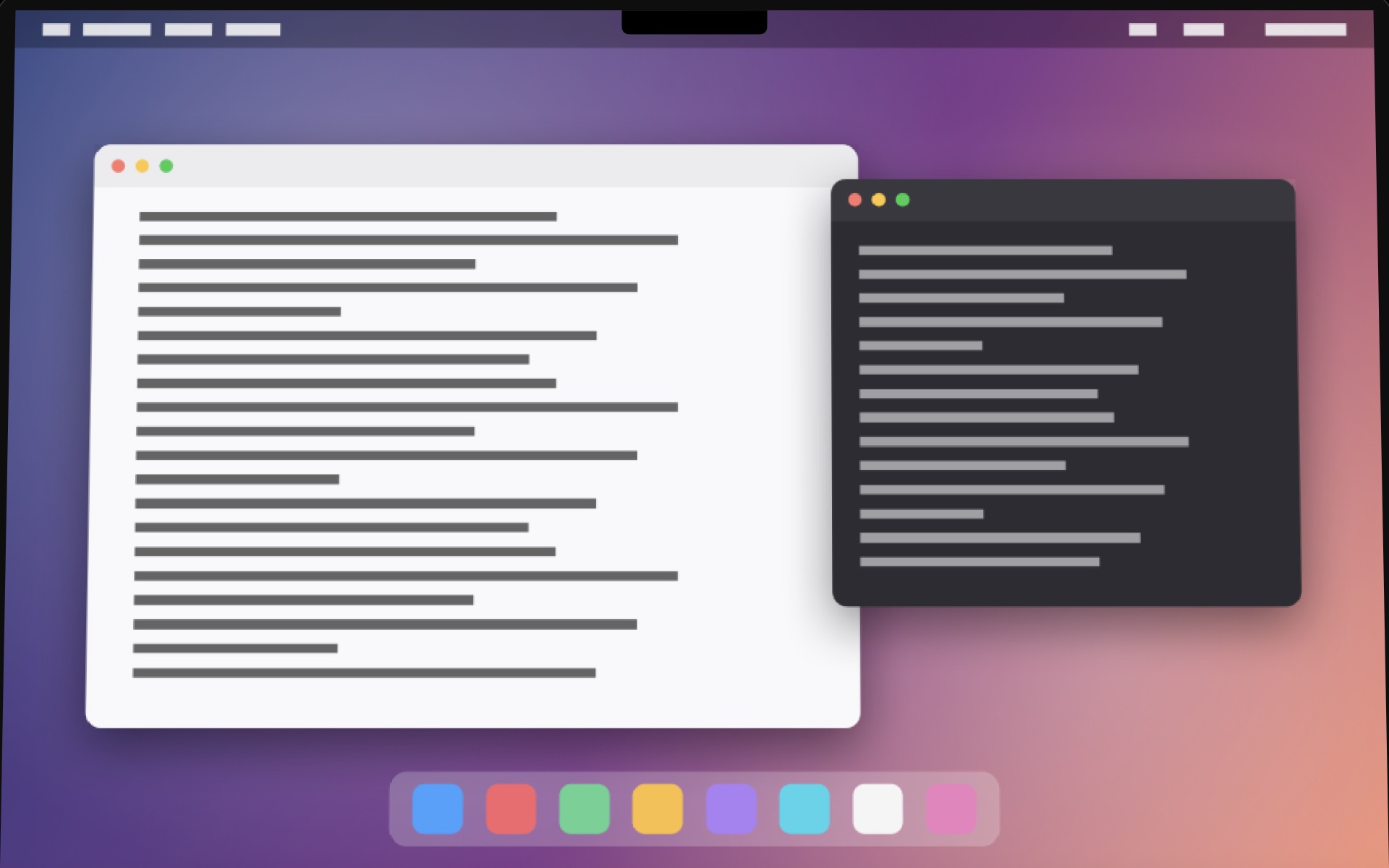
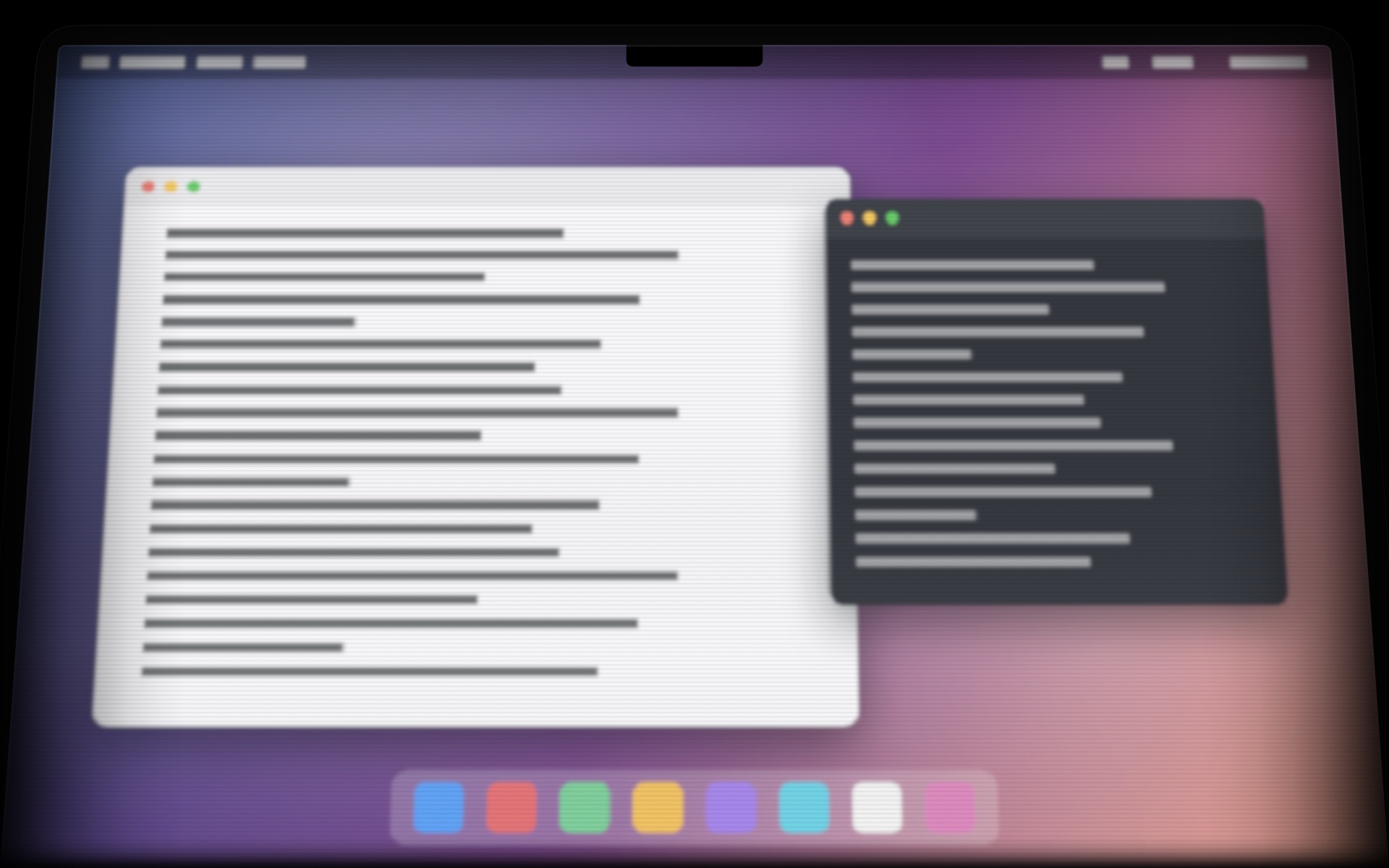
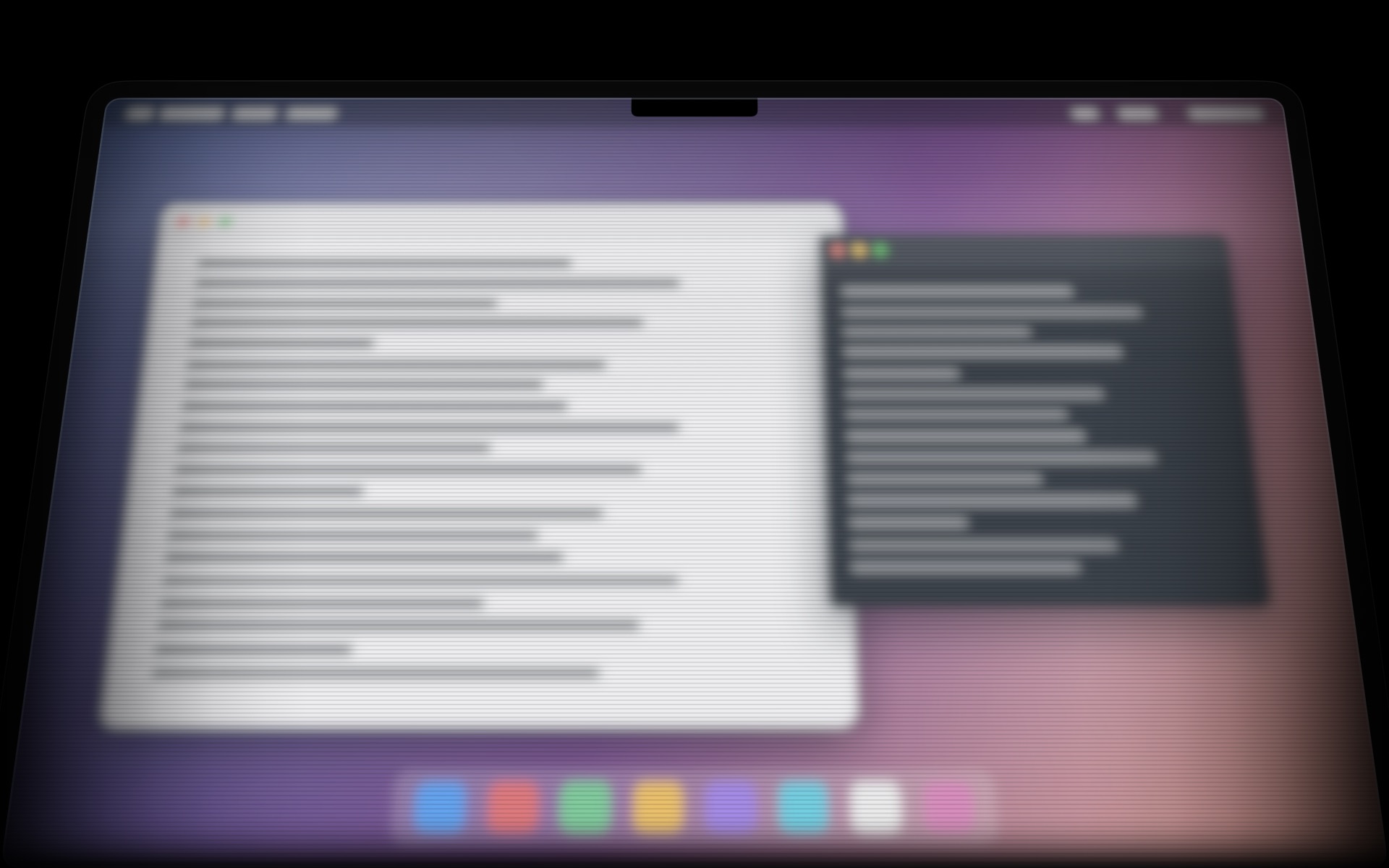
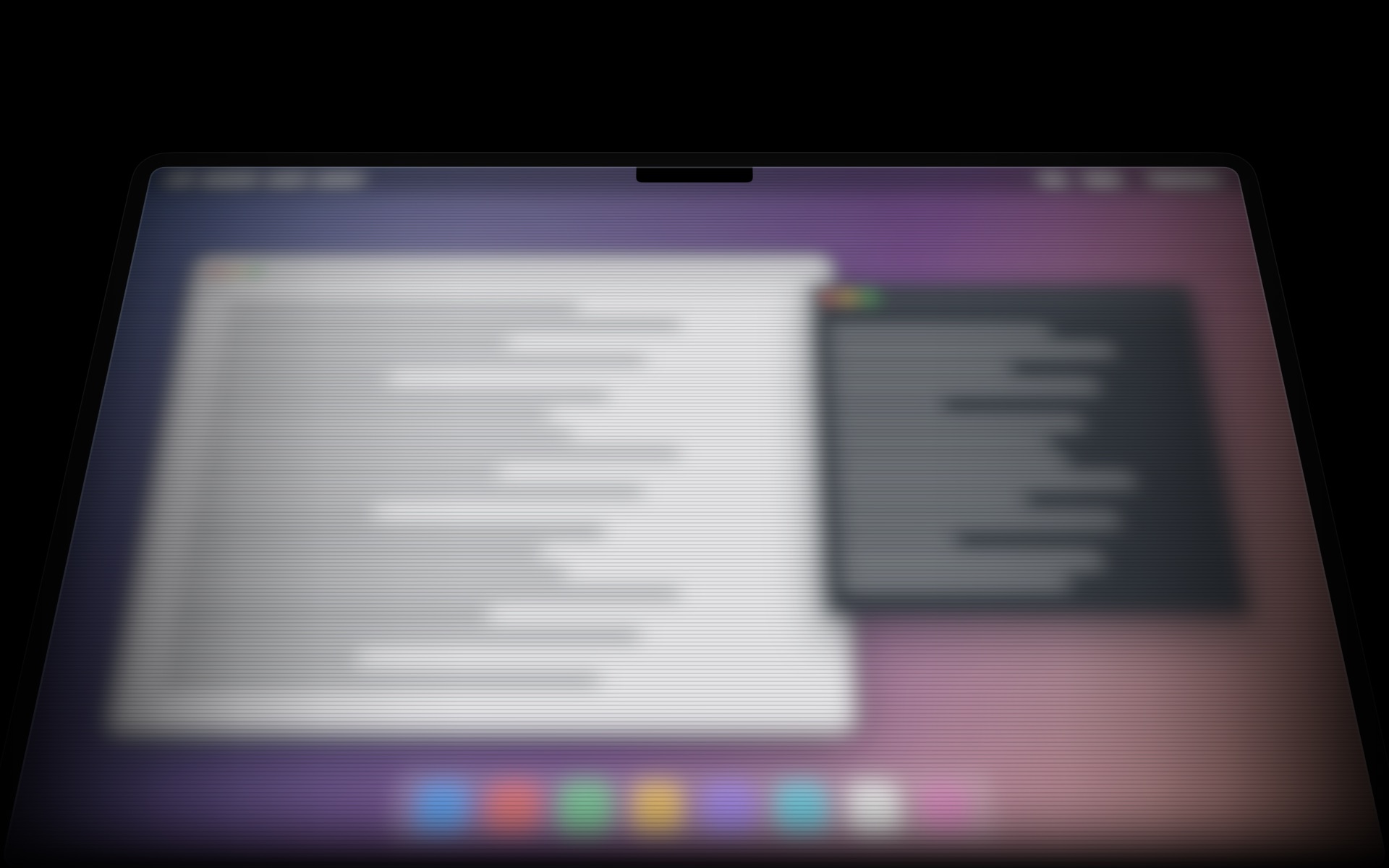
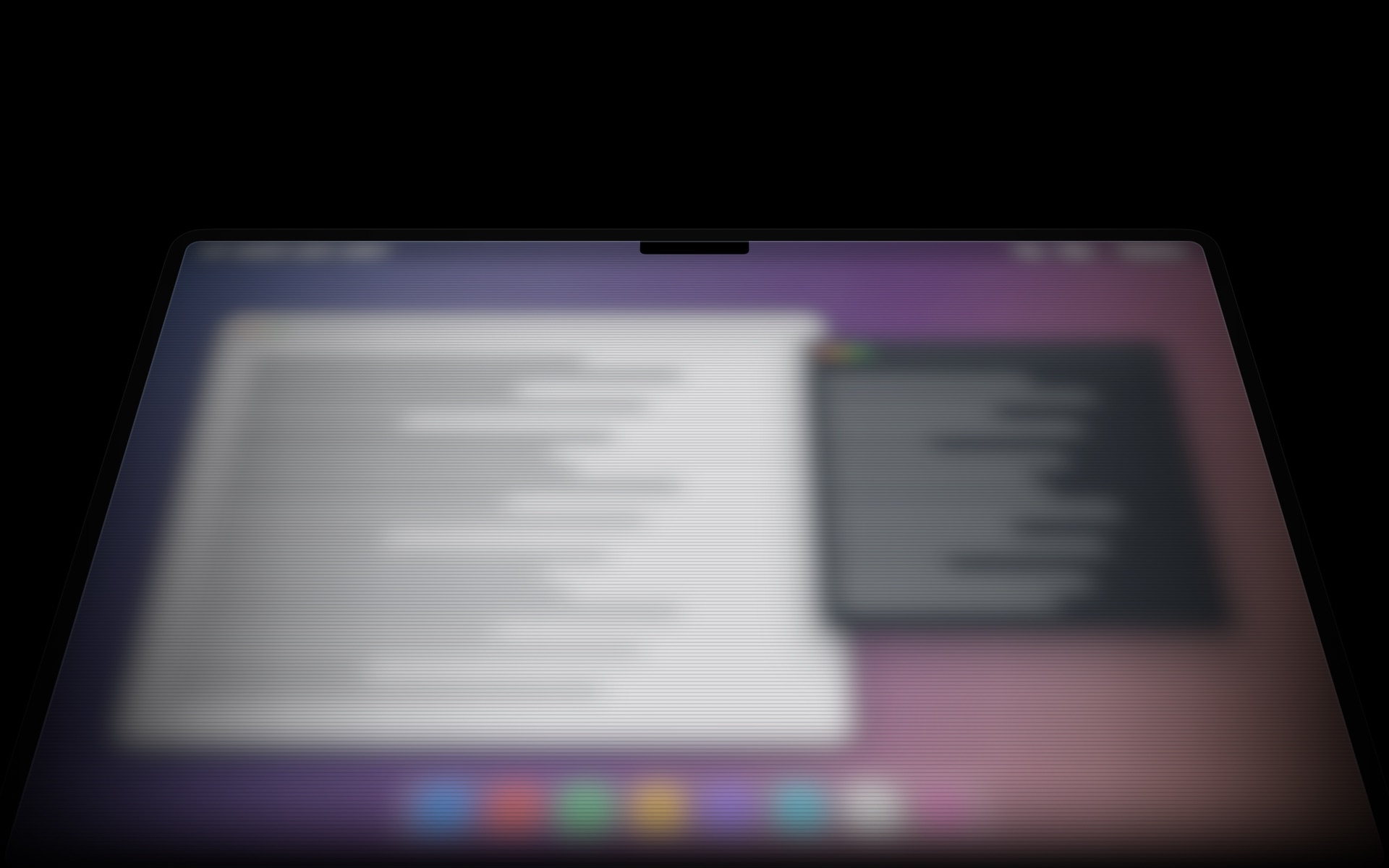
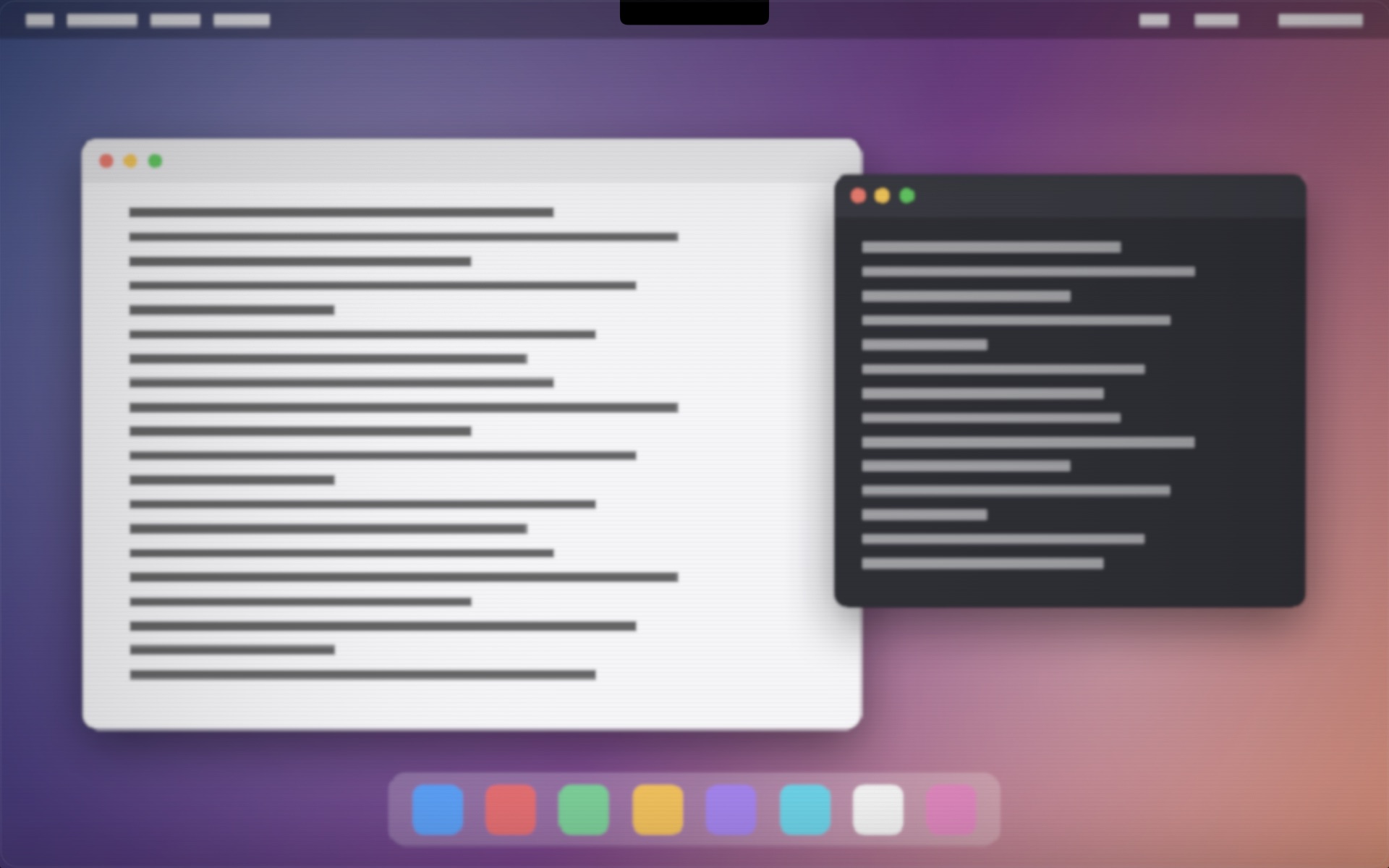
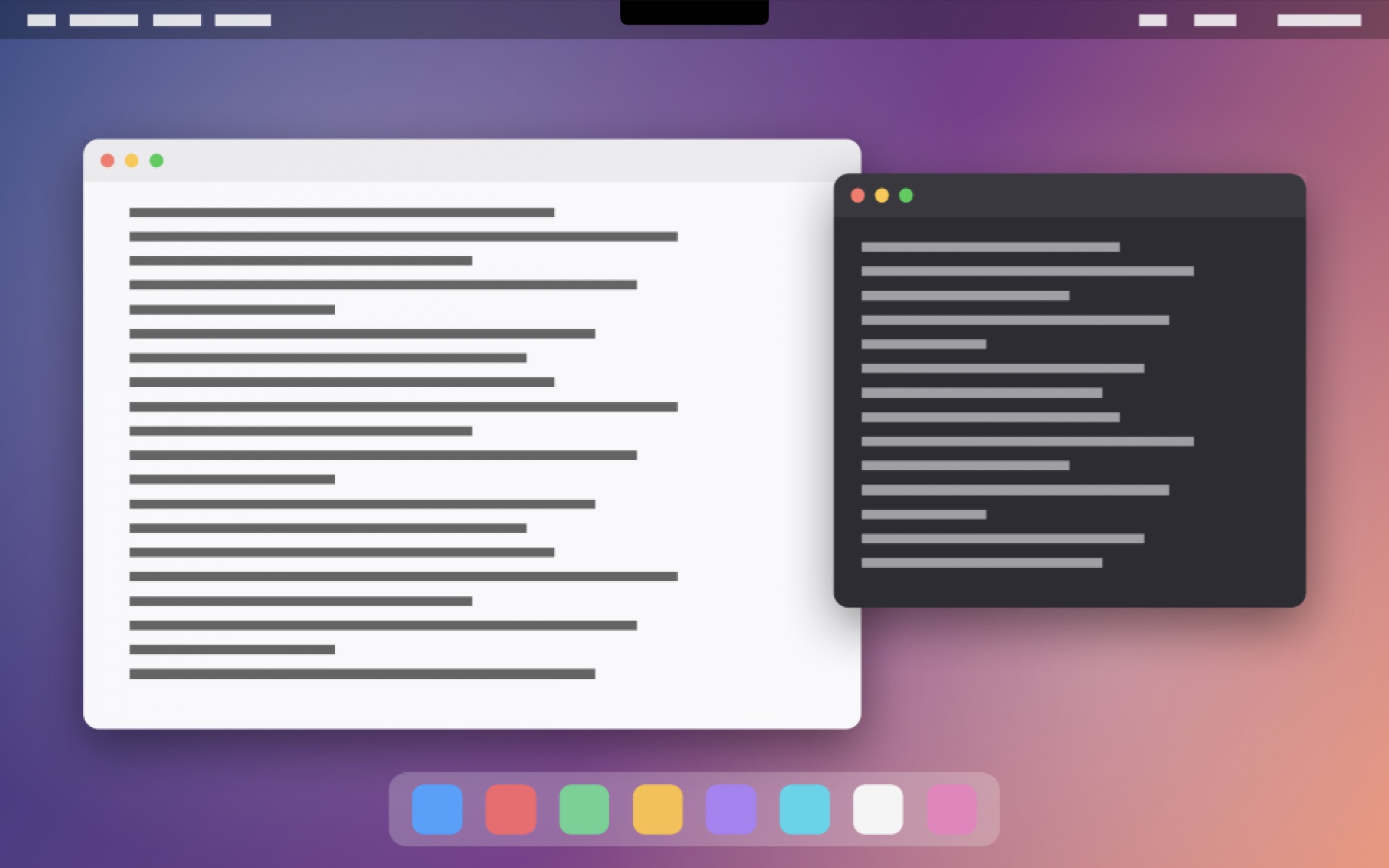
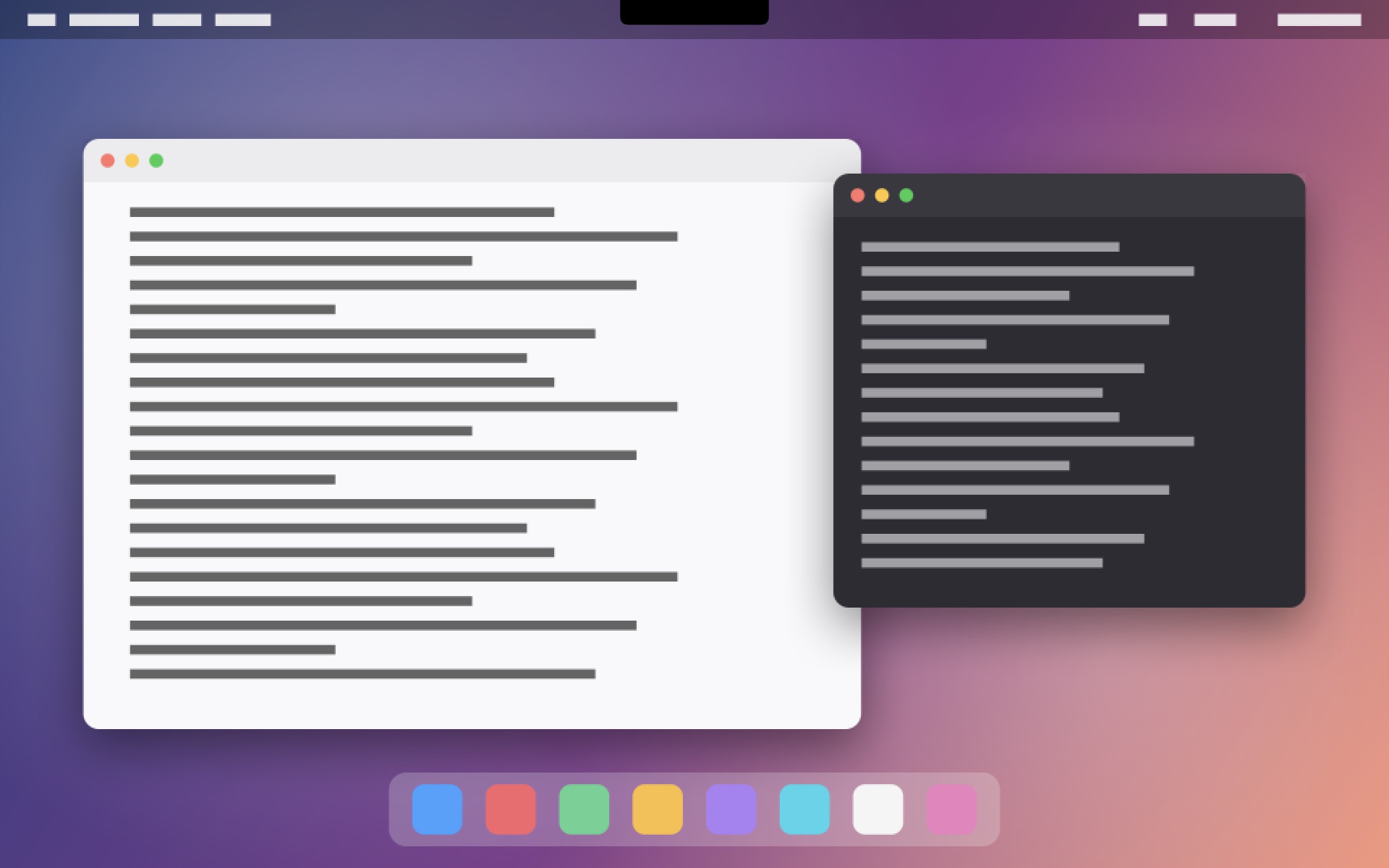
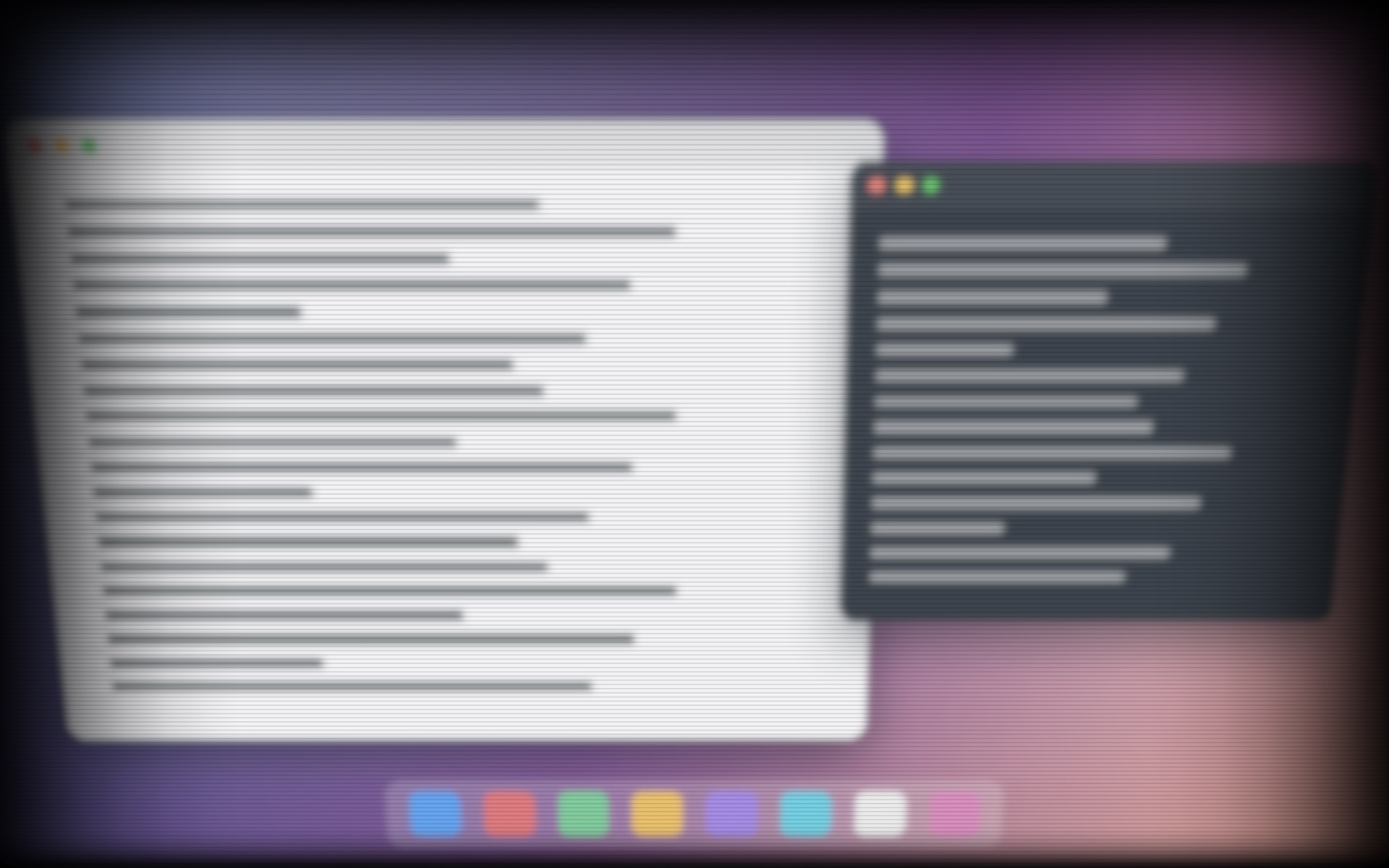
Scroll, and tilt the lid.
Real frames from the overlay on a Mac. As you scroll, the glass moves and the picture stays put.
Duo is a small Mac app that lives in your menu bar. Tilt the lid and the picture stays where it was: it leans away from you, drifts out of focus, then snaps back into the glass the moment you hold still. The demo below shows the idea. The app does it on your real screen.
Free · Version 1.2 beta · macOS 14 or later · Apple silicon MacBook
Duo 1.2 beta brings the picture back much faster, and the effect now plays wherever you are on your Mac, even at the lock screen.
In 1.1 the picture took 1.25 seconds to swing home, then waited 2 more seconds before your live screen came back. In 1.2 the whole snap is over in about half a second and you are straight back on your live screen.
Duo 1.2 draws above everything on the built-in display, so the effect never skips a place.
Duo reads your MacBook’s lid angle sensor and paints the effect over your real desktop. The demo above follows the same three steps.
The moment the lid leaves its resting angle, Duo takes one snapshot of the screen and lays it on the glass, exactly where your screen was. So far, nothing looks different.
Keep moving the lid. The picture does not follow: it stays glued to the bottom of the glass and leans. Open the lid further and the top comes toward you; close it and the top falls away, the far end drifting out of focus. Where the picture has left the glass, the panel is simply black.
Hold still for one second (any nudge restarts the count) and the picture swings back into the glass in about half a second, sharp again. At 30° or less the lid is too closed to read anyway, so it keeps floating until you open it up again.
Real frames from the overlay on a Mac. As you scroll, the glass moves and the picture stays put.
Duo reads the hinge sensor a hundred times every second and redraws on every frame of the display, so the picture never trails behind the glass. In between, it does nothing at all.
Duo was designed so the worst thing that can happen is a blurry desktop until you press Stop.
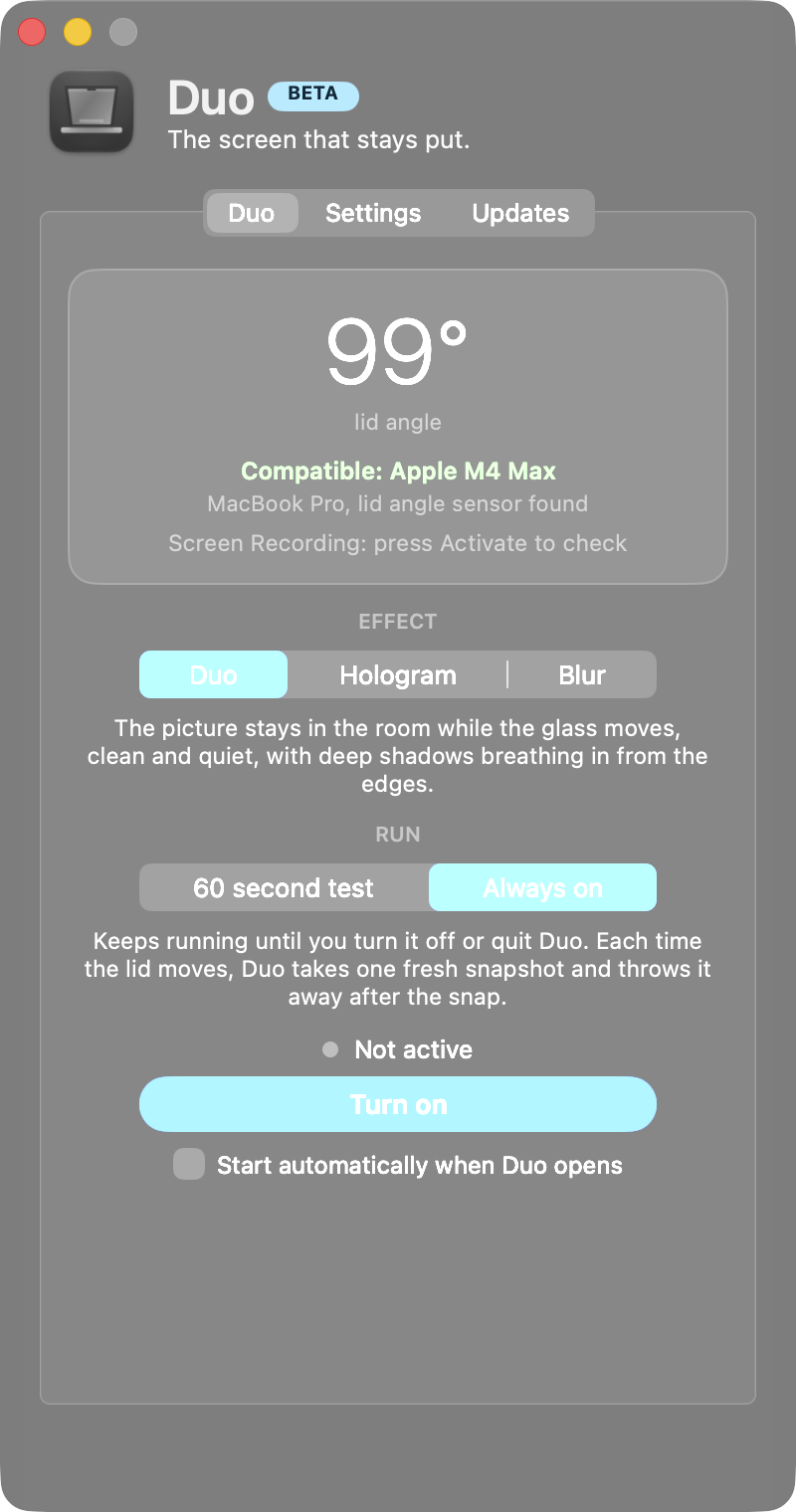
Pick Test first (one minute unless you change it): it checks that the effect works on your Mac, then switches itself off, overlay gone, sensor back to a slow idle read. Happy with it? Flip to Always on and Duo keeps running until you turn it off; one click in the menu bar stops it at any time.
The overlay ignores every click, scroll and key, at the lock screen too. Your Mac keeps working exactly as before underneath it; Duo just draws on top.
When the lid starts moving, Duo takes one snapshot of your screen, shows it back to you, and throws it away when the picture snaps home. No recording, no saved pictures, nothing sent anywhere. Duo only goes online when you check for updates.
While the lid is still, Duo does nothing but read one tiny sensor value 100 times a second. Drawing only happens while the picture floats, and the GPU does all of it. With the shorter snap in 1.2 there is even less of it.
Frames straight from the app, not mockups.
Apple silicon MacBooks carry a hinge angle sensor. Duo reads it through IOKit as a plain HID device and smooths it into a clean angle, no calibration needed.
The instant the lid leaves its resting angle, Duo grabs a single frame of the built-in display with ScreenCaptureKit, the same API Apple’s own screenshot tool uses.
A borderless window above everything (full-screen apps, every Space, the menu bar, the Dock and the lock screen) shows that frame in one of three ways. Duo glues it to the bottom of the glass, bezel and notch included, and leans it in perspective as the lid moves, lightly blurred, with deep shadows breathing in from the edges. Hologram is the same lean with the light show: a rim of light, scan lines and a shimmer. Blur leaves it in place and blurs it more and more. All three run on the GPU with Core Image and Core Animation. Hold still and it swings back.
Free. One small app, no account, nothing to set up.
A normal Mac app that also lives in your menu bar. Unzip it, open it, press Activate, tilt your lid.
See releases.jsonTo check your download, run shasum -a 256 ~/Downloads/Duo.zip in Terminal. It should print the same code. If Safari already unzipped it, the zip is usually in the Trash: right-click it there and choose Put Back, then run the command. Or turn off Open “safe” files after downloading in Safari > Settings > General and download it again.
By downloading you agree to the Terms of Use. How your data is handled: Privacy Policy.
Duo is not notarized by Apple yet (that needs a paid Apple developer account, which is on the list). So the first time you open it, macOS says “Apple could not verify Duo is free of malware” and offers Move to Trash or Done. Press Done, then pick the way that fits your Mac:
Paste this, press Return, then open Duo as usual:
xattr -dr com.apple.quarantine /Applications/Duo.appYou only do this once, and updates from inside the app skip it. It is not a warning about Duo in particular: every app outside Apple’s notarization program gets exactly this message.
macOS files “take a picture of the screen” under Screen Recording. Duo needs it for one thing: the single snapshot it takes each time the lid starts moving. It never records video or sound, and the picture is gone the moment it snaps back.
You can turn it off again any time in the same place.
Have the source folder? One script, no Xcode project. It compiles the Swift sources, wraps them in an app and signs it for your Mac. You need the Xcode Command Line Tools.
# in Terminal, inside the source folder
./build.sh
open Duo.app
That was the whole design brief. Duo never captures input, never saves a picture of your screen, only goes online when you check for updates, and stops the moment you tell it to (the 60 second test even stops by itself). The overlay is a window that ignores clicks, so even mid-effect your Mac behaves as usual underneath. For troubleshooting it keeps a small text log at ~/Library/Logs/Duo.log, with no pictures in it.
Yes, since 1.2. The picture plays over full-screen apps and videos, on every Space, over the menu bar and the Dock, and at the lock screen. At the lock screen Duo only shows a picture of what is already there, or, when macOS does not share the lock screen, a blurred copy of your desktop picture. It cannot unlock your Mac, and it ignores every click and key, so typing your password works as usual.
No. That sentence appears for every app that is not in Apple’s notarization program, and Duo is not in it yet (it needs a paid developer account). Press Done, then use Open Anyway in System Settings under Privacy & Security, once. The steps are in the Download section.
macOS groups “take a picture of the screen” under the Screen Recording permission. Duo uses it for exactly one snapshot each time the lid starts moving, and discards it when the picture snaps back. How to allow it.
Apple silicon MacBook Pro models from 2021 on, MacBook Air from the M2 generation on, and the MacBook Neo models sold in the Americas and in Europe. Intel MacBooks don’t have it. Duo checks on launch and falls back to a manual slider if the sensor isn’t there. See the full list.
At 30° or less the picture keeps floating and blurred, just like the demo. When the lid actually shuts, your Mac goes to sleep like it always does. When you open it again and hold still, the picture snaps home.
Yes. Pick one of three looks: Duo (glued to the bottom of the glass, bezel and notch included, leaning away in perspective with a soft wave of shadow around the edges), Hologram (the same lean with a rim of light, scan lines and a shimmer) or Blur (it stays put and blurs more and more). The Settings page has sliders for effect strength, depth, blur, dimming, edge fades, the hold time before the snap, the snap threshold and the session length. Changes apply immediately. There is a reset button, and Duo can open at login.
Open the Updates page and press Check for updates. If there is a newer version, Duo downloads it, replaces itself and relaunches. You never have to download it again by hand, and coming from 1.1 you get 1.2 the same way.
Compare its SHA-256 code with the one in the Download section. In Terminal, run shasum -a 256 ~/Downloads/Duo.zip. If the long code it prints matches, the file is exactly the one published here. If Terminal says there is no such file, Safari already unzipped it and usually moved the zip to the Trash: right-click it there, choose Put Back and run the command again. Or turn off Open “safe” files after downloading in Safari > Settings > General and download it again.
Quit Duo from its menu bar icon, then drag Duo from your Applications folder to the Trash. If you switched on opening at login, turn it off in Duo first. To tidy up, remove Duo from Screen Recording in System Settings, Privacy & Security.
Yes. Isle turns the notch into a Dynamic Island. When Duo’s picture lets go of the glass, Isle rides inside the picture with everything else, then takes its place in the notch again the moment the picture snaps home. You never see the island twice.
No. Duo is an independent app inspired by a concept animation. It is not affiliated with or endorsed by Apple.